
NVR Installation Seattle should give you more than a screen full of live camera views. A network video recorder needs to accept the intended cameras, record at the agreed quality, retain footage for the required period, and let authorized users retrieve an incident without confusion.
For a Seattle home or business, the right recorder depends on the complete system rather than a channel count on the box. This guide explains compatibility, recording capacity, storage planning, and the checks to complete before handover. When the recorder is part of a new project, coordinate it with your security camera installation in Seattle so coverage and recording requirements are planned together.
NVR Installation Seattle: Define What the Recorder Must Do
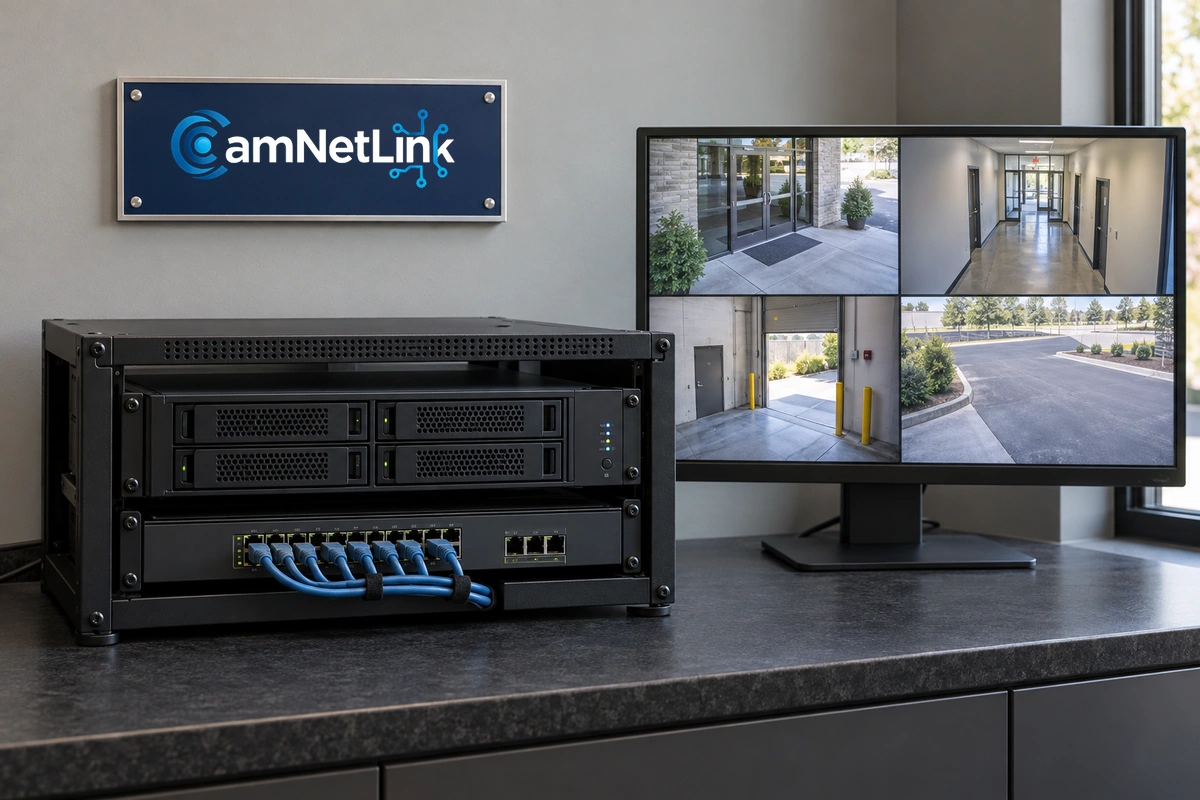
An NVR receives video from compatible network cameras and stores recordings according to its configuration. Depending on the platform, it may also provide search tools, event information, exports, and remote access.
Start with the footage you need, then select equipment that supports it. For each camera, identify the intended recorded resolution, frame rate, recording mode, and retention target. Note whether staff need continuous context, event clips, or both.
Also decide:
- How many cameras will be connected now and what expansion is reasonably expected.
- Whether existing cameras must be retained.
- How many users need simultaneous live viewing or playback.
- Who may export footage or change settings.
- Whether local viewing, remote viewing, or an additional archive is required.
A written recording brief makes proposals easier to compare and gives the installer a clear result to demonstrate.
Check Camera Compatibility Before Buying an NVR
A network connection alone does not establish that a camera and recorder will work together as intended. Confirm the exact models, supported software versions, video formats, and features that the proposed pairing can use.
For a mixed-brand system, check the relevant ONVIF conformance and feature support. ONVIF profiles group different capabilities, and some features are conditional. A general “ONVIF compatible” description should not replace verification of the functions you need.
Review the following with the installer:
- Whether the recorder accepts the camera’s intended resolution and codec.
- Whether motion or analytics events reach the recording platform.
- Whether supported audio or two-way communication is required and approved.
- Whether camera-side storage can be accessed through the selected system, if needed.
- Whether camera or channel licenses are included or purchased separately.
Test a representative existing camera before committing to a larger migration. Successful live video does not necessarily demonstrate event search, audio, or every advanced feature.
Channel Count, Recording Bandwidth, and Playback Are Different Limits
Recorder specifications describe several separate capabilities. Evaluate all of them against the proposed camera settings and viewing requirements.
| Specification | What it affects | What to confirm |
|---|---|---|
| Camera or channel capacity | Supported video sources | The intended camera mix, licenses, and expansion allowance |
| Recording bandwidth | Incoming video the recorder can handle | Combined stream requirements at the selected settings |
| Decoding and playback capacity | Views that can be displayed or reviewed together | Required layouts, resolutions, and simultaneous users |
| Usable storage | How much footage can remain available | Retention after the selected drive configuration and recording settings |
A recorder can have spare channels while lacking capacity for the proposed video streams. Conversely, a display limitation should not automatically be treated as a recording failure. Ask the installer to explain the relevant limits and demonstrate the intended live-view and playback layouts.
Security Camera Recording Setup: Continuous or Event-Based?
Continuous recording preserves the sequence of activity while the configured schedule is active. Event-based recording stores footage when a supported trigger occurs. It can reduce storage use, but the recording depends on the trigger and its configuration.
The appropriate choice may differ between cameras. An entrance might need continuous context, while another view may have an approved event-based objective. Define the purpose before selecting a mode.
For event recording, test the trigger area and any supported pre-event and post-event buffers. Confirm that the clip includes the approach, the relevant action, and enough context afterward. Do not accept the configuration solely because a notification appeared on a phone.
Keep recording schedules explicit. A camera that is deliberately inactive during part of the day should not later be mistaken for a fault.
Plan NVR Storage From Bitrate and Retention
Storage depends on how much video is recorded and how long it is kept. Resolution influences the design, but a “4K recorder” label does not tell you how many days of footage the system will retain.
Use the proposed camera settings and realistic average bitrates for planning. Scene activity, lighting, compression, frame rate, and recording schedules can change actual usage. Bandwidth peaks also matter when evaluating recorder and network capacity.
A Simple Continuous-Recording Example
Consider six cameras, each recording continuously at an average of 4 megabits per second, with an illustrative 14-day retention target. This is a calculation example, not a recommended retention period or a completed CamNetLink project.
- Combined average video bitrate: 6 × 4 Mbps = 24 Mbps.
- Daily video volume: approximately 259.2 GB.
- Video volume over 14 days: approximately 3,628.8 GB, or 3.63 TB.
These figures use decimal storage units and exclude overhead and reserve capacity. They also assume the stated average bitrate remains representative. Audio and additional recorded streams, if enabled, need to be accounted for.
Do not match that estimate directly to the advertised total capacity of a set of drives. Confirm usable capacity after formatting, the selected redundancy arrangement, and platform requirements. Then verify actual retention once the recorder has accumulated sufficient history.
Retention Must Preserve the Quality You Need
Some platforms can retain older footage at reduced quality. If such a feature is proposed, distinguish between the full-quality retention period and the longer period available at lower quality.
Do not reduce image quality simply to reach a storage target without reviewing the recorded result. The footage still needs to support its assigned purpose.
Choose Supported Drives and an Appropriate Equipment Location
Check the recorder manufacturer’s supported drive requirements, capacities, and storage configuration. Drive bays and advertised raw capacity do not by themselves establish a suitable installation.
Where supported, RAID can improve availability during specified drive failures. It is not a separate backup and does not protect against every form of loss, including theft of the recorder or accidental deletion.
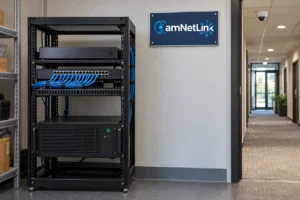
Place the recorder where it has suitable ventilation, controlled physical access, reliable power, and room for servicing. Avoid an enclosed cabinet that conflicts with the equipment’s cooling requirements.
If backup power is required, define what must continue operating and for how long. Cameras, PoE switches, and the recorder may all need power for recording to continue. Protecting only the recorder leaves a gap if the camera network shuts down.
Coordinate the NVR With the Camera Network
Some recorders include PoE camera ports; others use separate switches. Confirm the power requirements and network arrangement for the chosen equipment rather than assuming every NVR provides camera power.
For a separate-switch installation, document which ports serve the cameras and recorder. Any network separation or access restrictions should follow the supported platform design and the property’s IT requirements.
CamNetLink’s camera recording and network equipment services include NVR installation, recording setup, and related network work. The estimate should specify the recorder, switches, cabling, and configuration included.
Set User Access and Test Footage Exports
Assign access according to responsibility. Someone who watches live views may not need permission to delete footage, change recording schedules, or administer the system.
Use individual accounts and suitable authentication where supported. Confirm the owner’s administrative access, the installer’s continuing access if agreed, and the process for removing users when responsibilities change.
During handover, retrieve a sample incident, select the intended cameras and time range, and export it. Check playback on the device that will actually be used for review. Confirm timestamps and whether a particular player or export format is required.
Relevant footage should be preserved before routine overwrite. Remote viewing is not evidence that a separate copy exists; confirm any archive or backup arrangement explicitly.
NVR Installation Seattle: Handover and Retention Checks
Accept the system against the recording brief rather than its live screen alone:
- Camera registration: confirm that every agreed camera is connected and correctly named.
- Recording settings: check resolution, frame rate, schedules, and recording modes.
- Recorded detail: review representative movement under relevant lighting conditions.
- Playback: test the required layouts and user access.
- Time: verify the configured time zone and consistent timestamps.
- Storage: check available capacity and supported health reporting.
- Export: retrieve and play a sample clip outside the recording interface.
- Follow-up: arrange an actual retention check after enough recording history exists.
A new recorder cannot demonstrate 14 days of historical footage on installation day. Document the initial settings, then confirm the achieved result later under normal activity.
What Should an NVR Installation Estimate Include?
Request a breakdown covering the recorder, drives, licenses, network equipment, installation labor, configuration, testing, and user handover. Identify any recurring services or support charges separately.
For a replacement recorder, agree on preserving required existing footage before migration or storage initialization. Reusing drives may involve changes that erase recordings; retention of old footage should be planned before work begins.
Compare estimates against the same camera mix, recording quality, usable storage, and access requirements. A lower equipment price may reflect a different recording result.
Frequently Asked Questions
Can an NVR use cameras from different brands?
Potentially, if the specific models and required features are supported. Check compatibility documentation and test the intended functions rather than relying only on a general network or ONVIF label.
Does local NVR recording require an internet connection?
A properly configured local system may continue recording without internet service if the cameras, network, recorder, and power remain operational. Remote access and cloud-dependent features may be affected. Confirm the behavior of the selected platform.
Is a larger hard drive enough to increase retention?
Only if the recorder supports it and the complete storage configuration is suitable. Retention also depends on recording settings, actual video volume, and usable capacity.
Does RAID mean my footage is backed up?
No. RAID and a separate backup serve different purposes. Agree on how important footage will be exported or archived if a copy outside the recorder is required.
Can existing recordings move to a new NVR?
That depends on the platforms and supported migration options. Preserve required clips and confirm the process before replacing equipment, initializing storage, or removing the old recorder.
Discuss Your Recording Requirements With CamNetLink
For NVR Installation Seattle, prepare a camera list, your intended recording schedule, retention target, and viewing requirements. Include the models of any existing recorder and cameras you want assessed.
Contact CamNetLink for an NVR installation assessment and estimate, or call (206) 886-4953.